
Activate automatic opening on Android
How to turn on automatic opening on your Android phone, with a 30-day free trial.
Last updated 20 October 2026 · Checked for app 4.0.3
Before you begin
- The garage must have the automatic opening service activated.
- Update the Parqio app to the latest version.
Step by step
Open Automatic opening
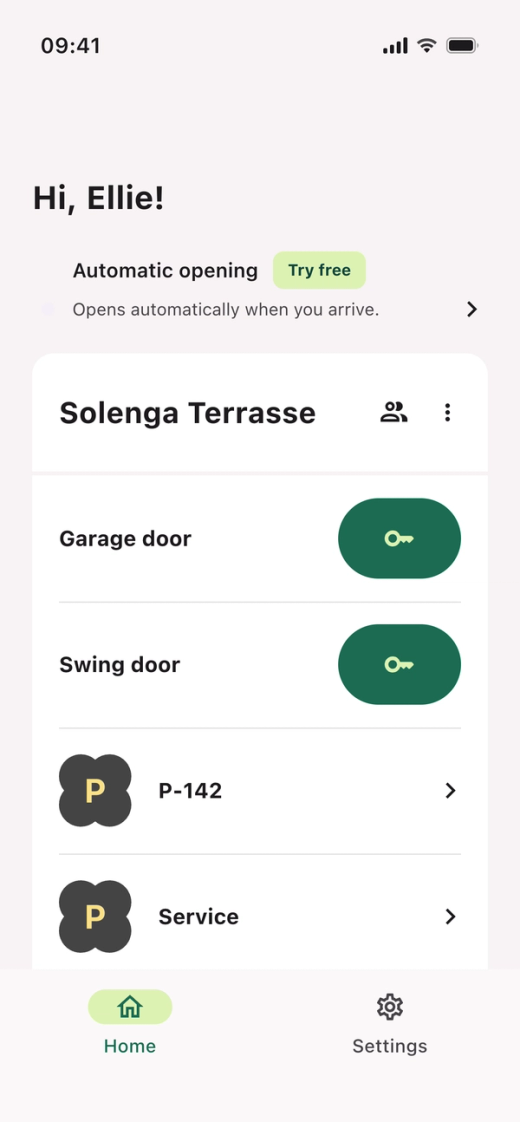
Tap “Automatic opening” at the top of the home screen, or go to Settings → Automatic opening.
Activate the free trial
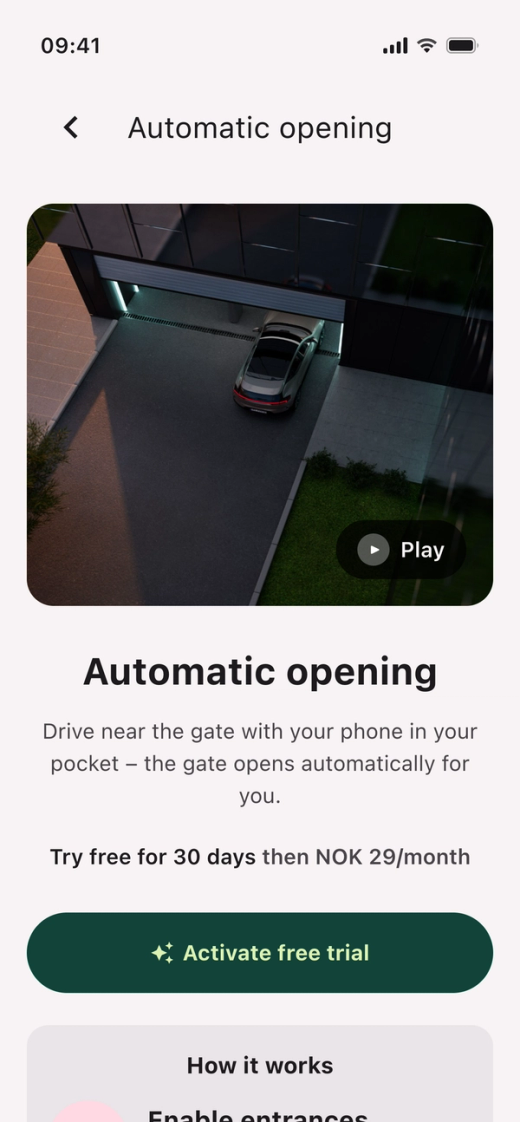
Tap “Activate free trial”. The trial lasts 30 days, and you don’t need a credit card.
Give access to your location
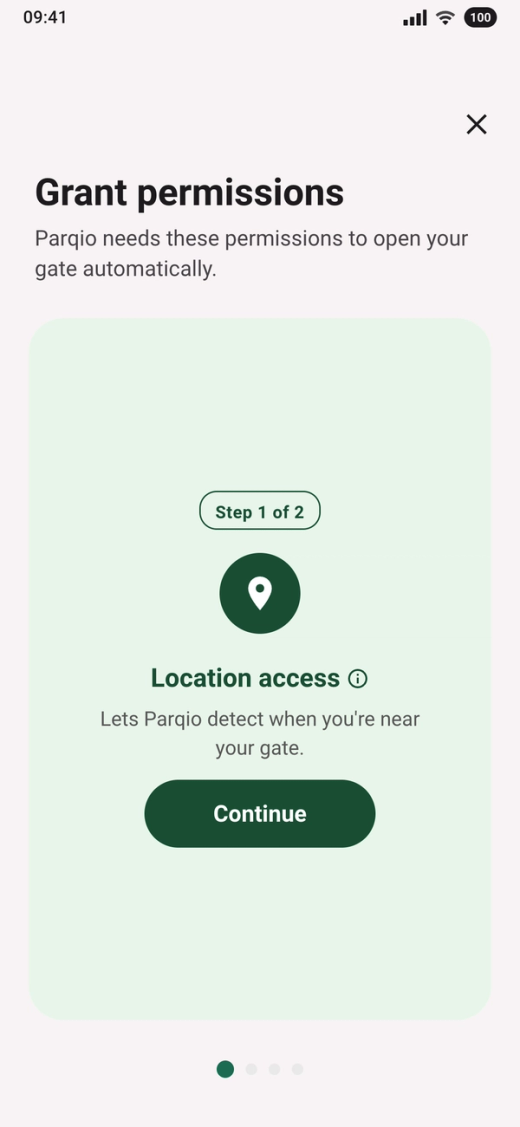
- Tap “Continue”.
- When your phone asks, choose “Precise” and “While using the app”.
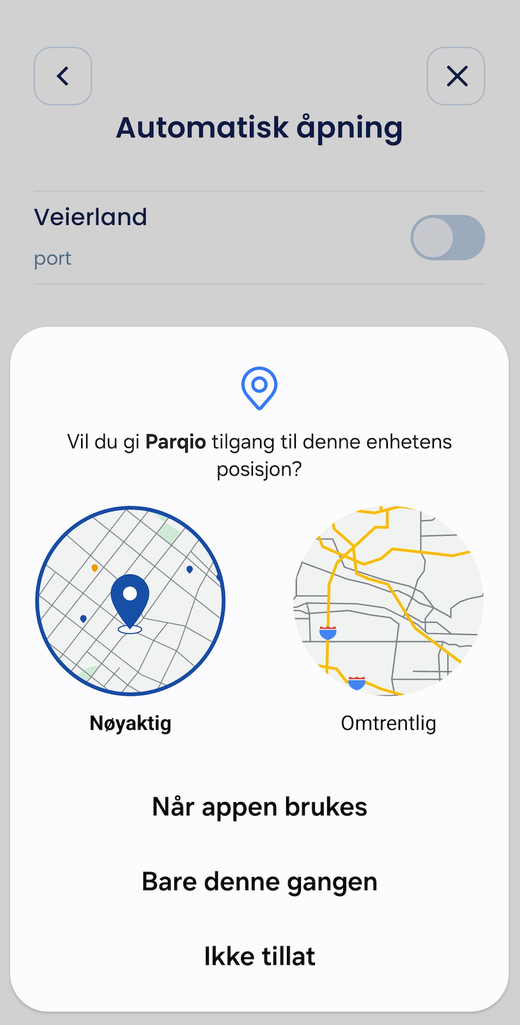
Allow location all the time
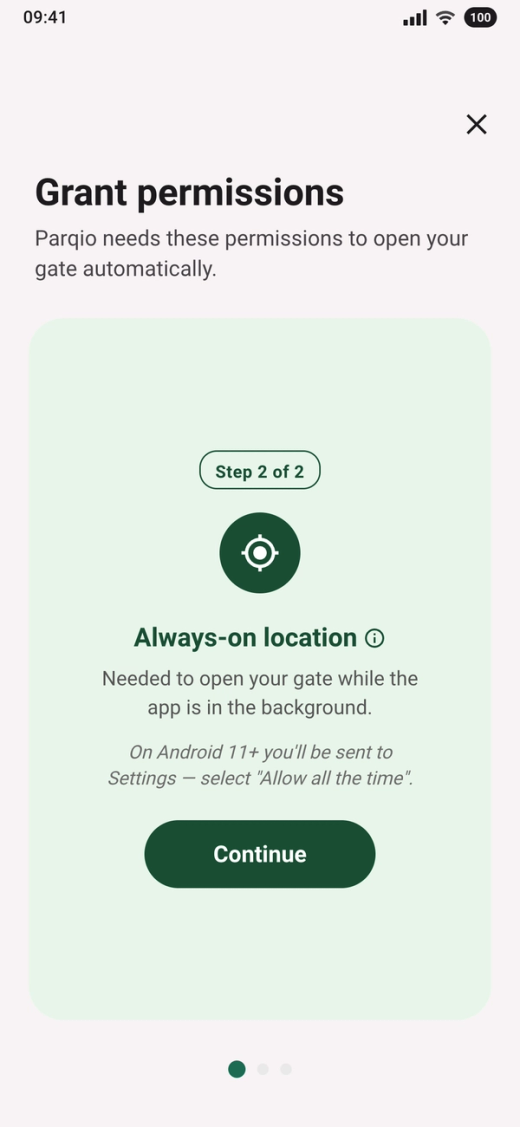
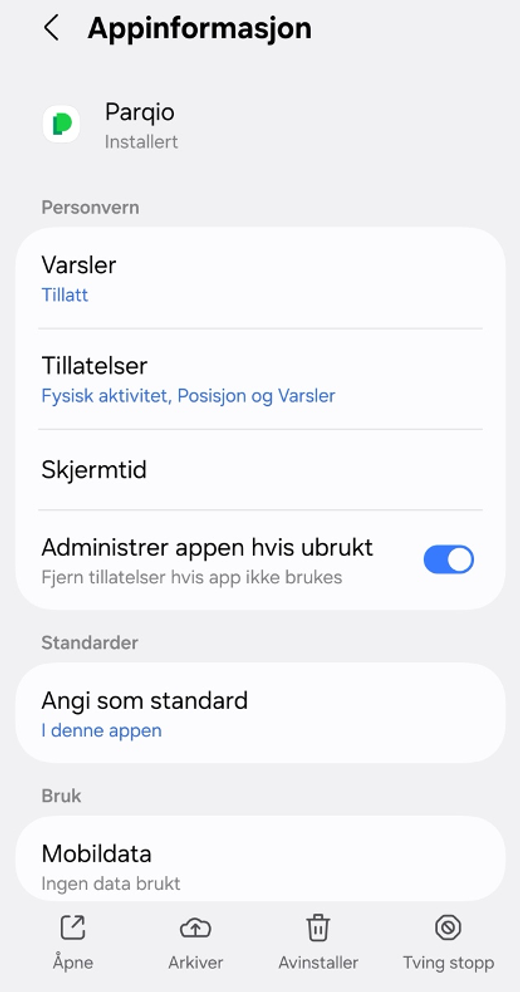
- Tap “Continue”. Your phone then opens the settings for Parqio.
- Tap “Permissions” and then “Location”.
- Choose “Allow all the time” and go back to the Parqio app.
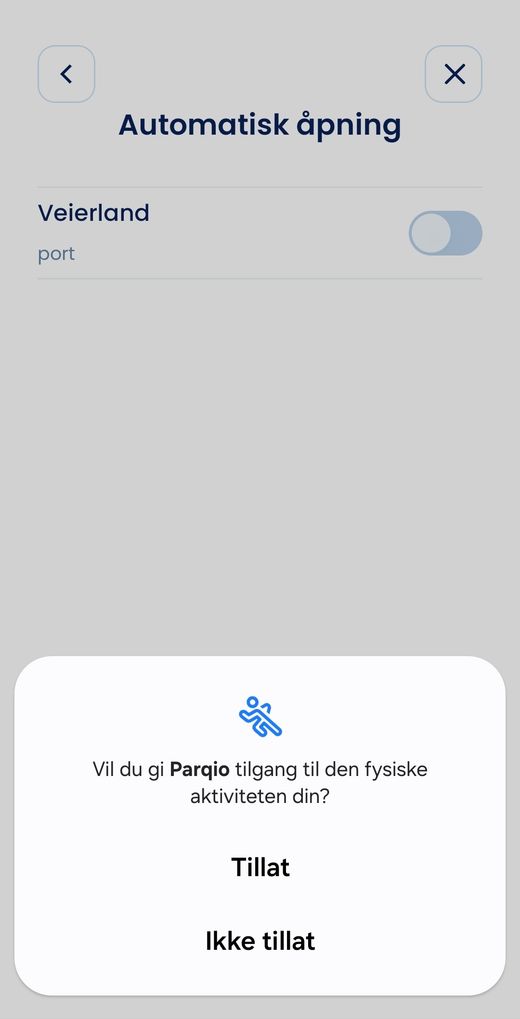
Give access to motion
The app uses motion to tell driving from walking.
- Tap “Continue” on the “Motion & Fitness” card.
- When your phone asks, tap “Allow”.
Allow notifications
On Android, automatic opening needs notifications. Your phone shows a notification while automatic opening is running, and confirms when a gate opens.
- Tap “Continue” on the “Notifications” card.
- When your phone asks, tap “Allow”.
Give Parqio unrestricted battery use
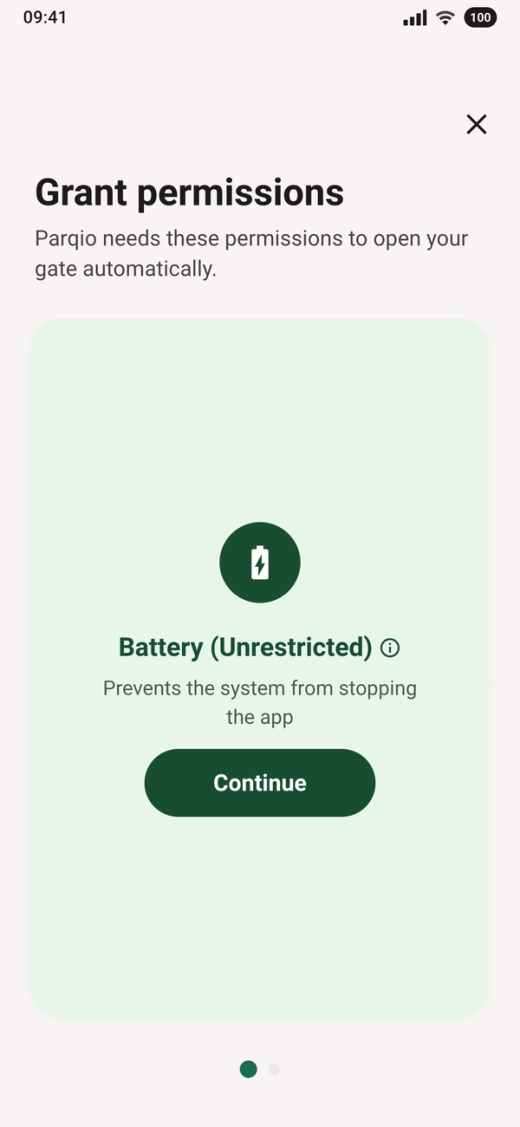
- Tap “Continue”.
- When your phone asks whether the app may always run in the background, tap “Allow”.
Stop the permissions from being removed
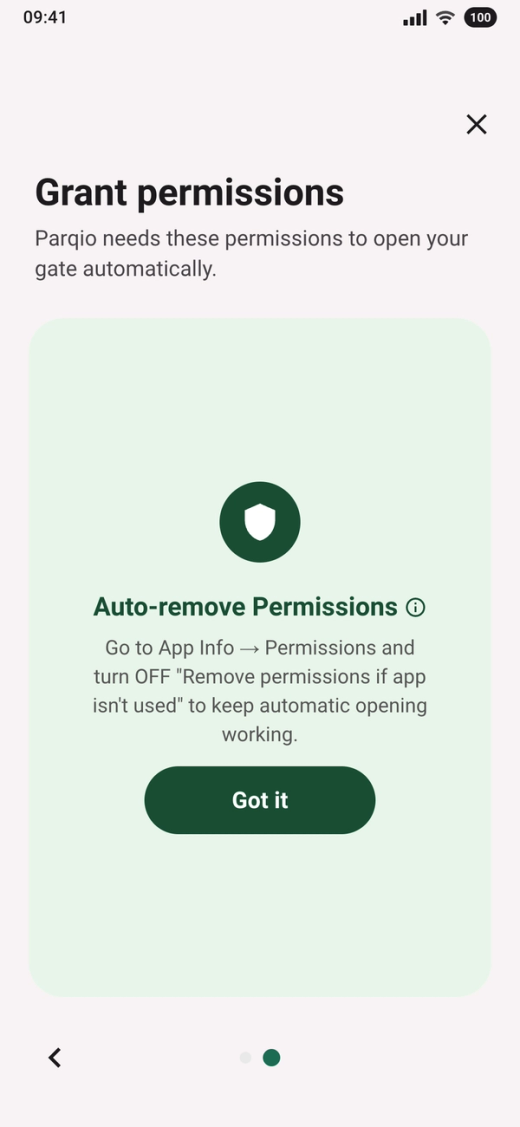
Android can remove permissions from apps you haven’t used for a while, and then automatic opening stops.
- Tap “Got it”.
- Open Settings on your phone and find Parqio.
- Turn off “Manage app if unused” and go back to the Parqio app.
Check the entrances
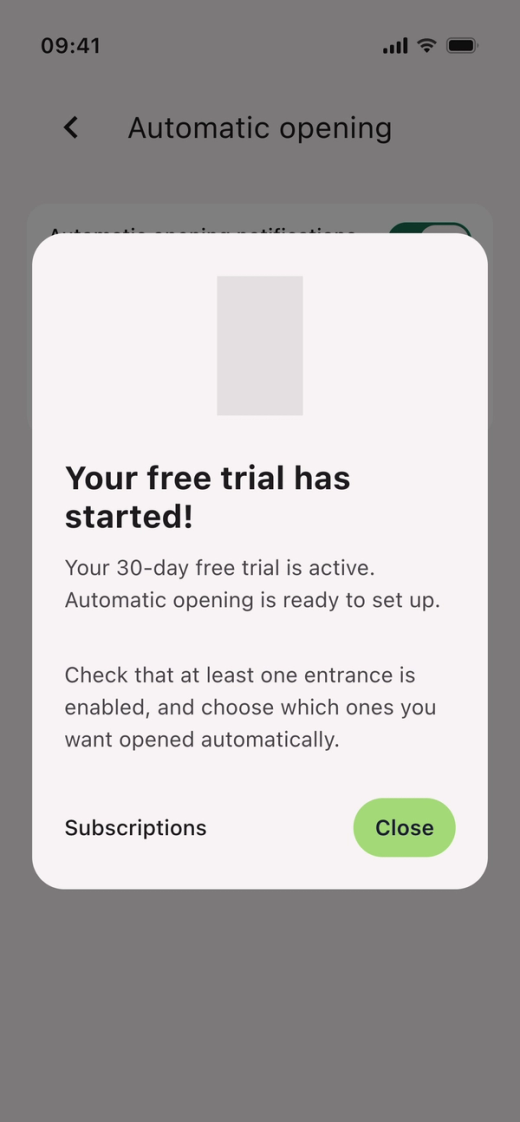
When you’re done, it says “Your free trial has started!”. All entrances that can open automatically are already on.
- Tap “Close”.
- Tap “Entrances”.
- Turn off the entrances you don’t want to use.
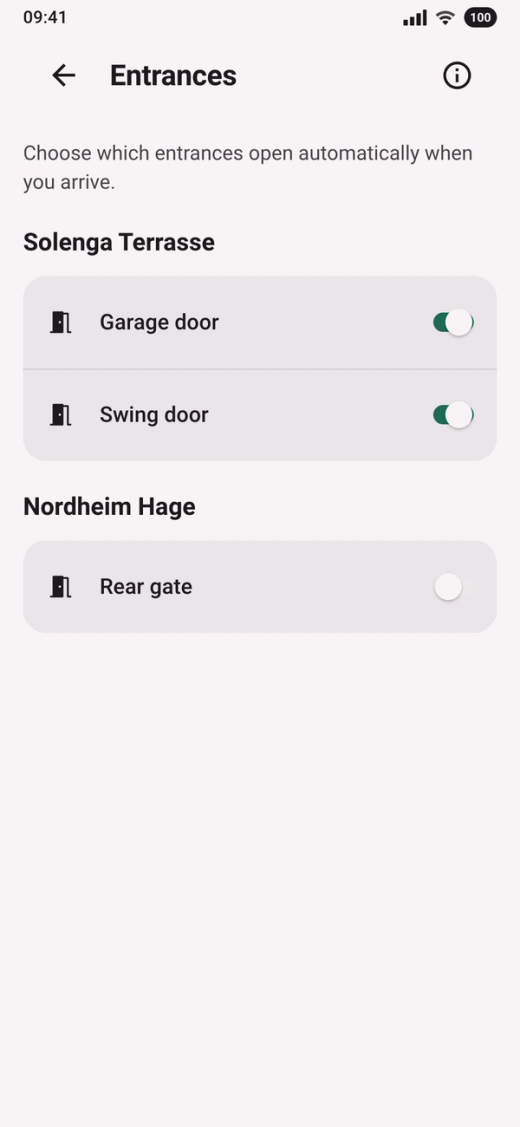
Automatic opening is now on. The gate opens when you drive towards it, but not when you walk.
Price after the trial
In Norway, automatic opening costs 39 kr a month or 348 kr a year per user after the trial. If your housing company covers the service (fleet agreement), you pay nothing.
Did you find what you were looking for?
Didn’t find what you were looking for?Contact customer support