
How do I connect more than one gate or door to the same Parqiobox?
How to connect more than one gate or door with an electric strike to the same Parqiobox.
Last updated 26 October 2026
The Parqiobox can control up to two gates or doors with an electric strike.
Install the antenna cable on port (A)
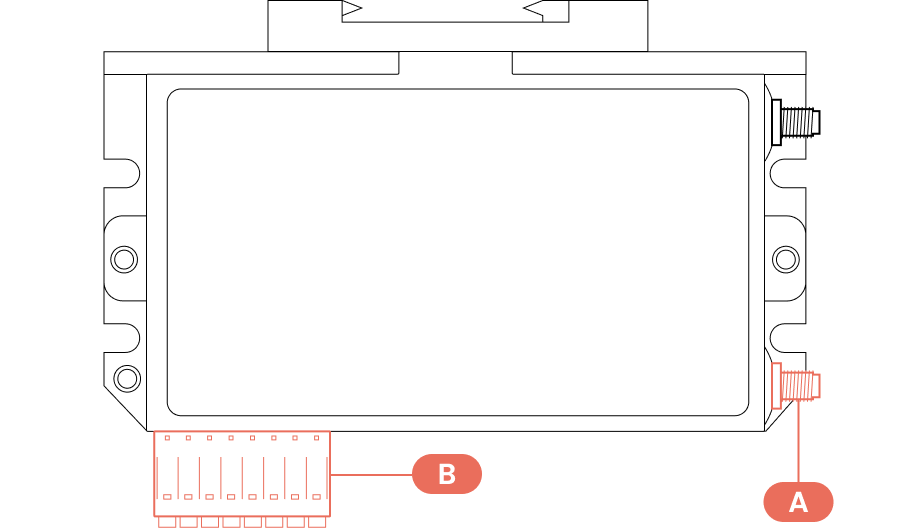
While the Parqiobox has two antenna ports, only port (A) is used for the cell network (see the illustration above). The antenna should be placed so it has a clear path to the nearest cell tower. You can check where the cell towers are with https://www.cellmapper.net/.
Wire power to pins (C) on the Phoenix block (B)
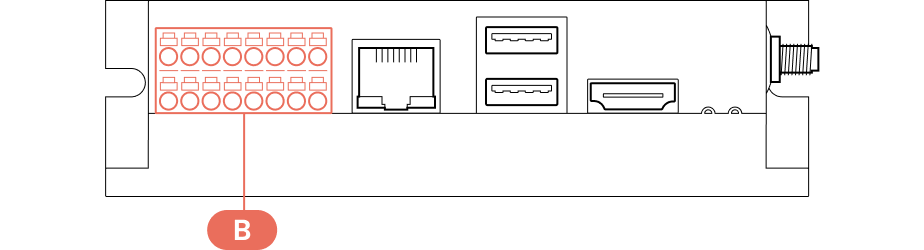
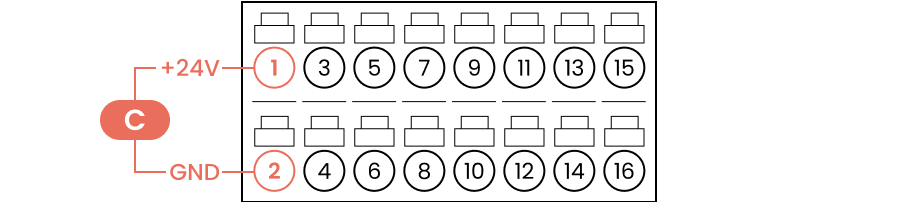
The green Phoenix block (B) is removable, which can make wiring easier. Use the provided 24V power supply and wire it up as shown with (C): +24V to pin 1 and ground to pin 2.
Important
Use stranded wire, not solid core.
Wire the first gate or door to output (E)
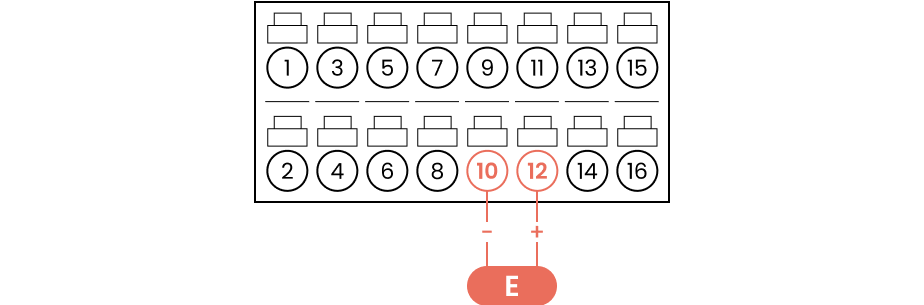
Output (E) sends the opening signal to the gate controller or the door, so it can be opened via Parqio (pin 10 and pin 12).
Important
Use stranded wire, not solid core.
Wire the second gate or door to output (G)
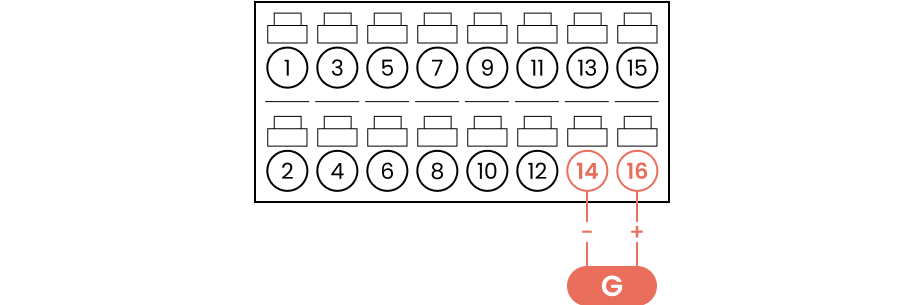
Output (G) sends the opening signal to the gate controller or the door, so it can be opened via Parqio (pin 14 and pin 16).
Important
Use stranded wire, not solid core.
Test the connection
Connect to the Wi-Fi network “parqio-xxxxxxxxxxxxxxx” (the serial number of the device) and go to 192.168.4.1 in your browser to test the network and the relays.
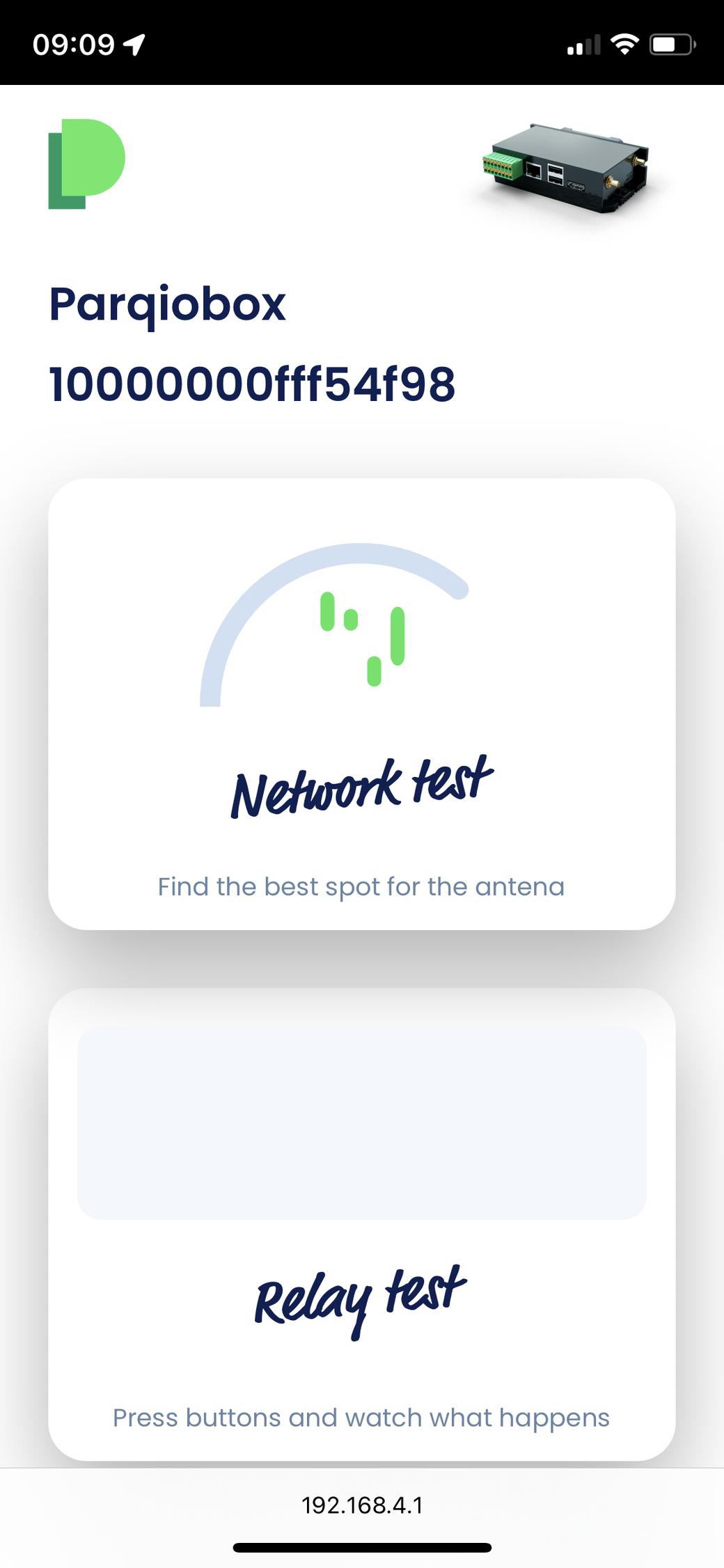
Not seeing “Relay test”? Contact customer support.
Did you find what you were looking for?
Didn’t find what you were looking for?Contact customer support