
Add a user to a parking space
How to add a user to a parking space in Parqio Admin.
Last updated 24 October 2026 · Checked for app 4.0.3
Before you begin
- You must have been added as an administrator and be logged in to Parqio Admin.
Add a user to a space

- Click “Spaces” in the menu (on a phone, open the menu with the (☰) button at the top right).
- Click the space you want to add a user to.
- Click the (+) button in the list of users.
Enter the phone number

- Enter the user’s mobile number.
- Click “Continue”.
Choose the access period
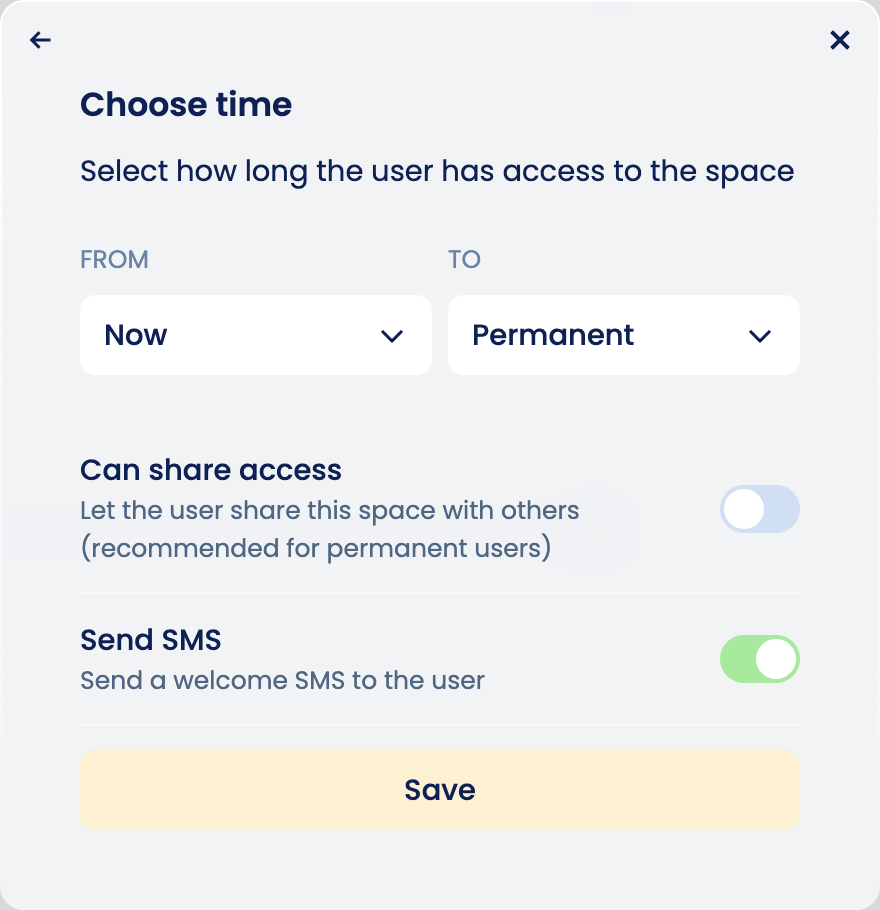
- In the “From” field, choose when access should start.
- In the “To” field, choose when access should end. The most common choice is “Permanent”.
- “Can share access”: Choose whether the user can share access with others (recommended for permanent users).
- “Send SMS”: Choose whether the user should get a text message (recommended). The text message says where the user has been given access, the number they can call to open the gate, and where they can download the Parqio app to open the gate with it.
- Click “Save”.
Did you find what you were looking for?
Didn’t find what you were looking for?Contact customer support