
Change a user’s access and permissions
How to change access and permissions for existing users in Parqio Admin.
Last updated 23 October 2026 · Checked for app 4.0.3
Before you begin
- You must have been added as an administrator and be logged in to Parqio Admin.
Find the user whose access and permissions you want to change

- Click “Users” in the menu (on a phone, open the menu with the (☰) button at the top right).
- Click the user, or search for them in the search field. You can always find users by searching for their phone number.
- Under “Spaces”, click the space you want to change.
Edit access and permissions
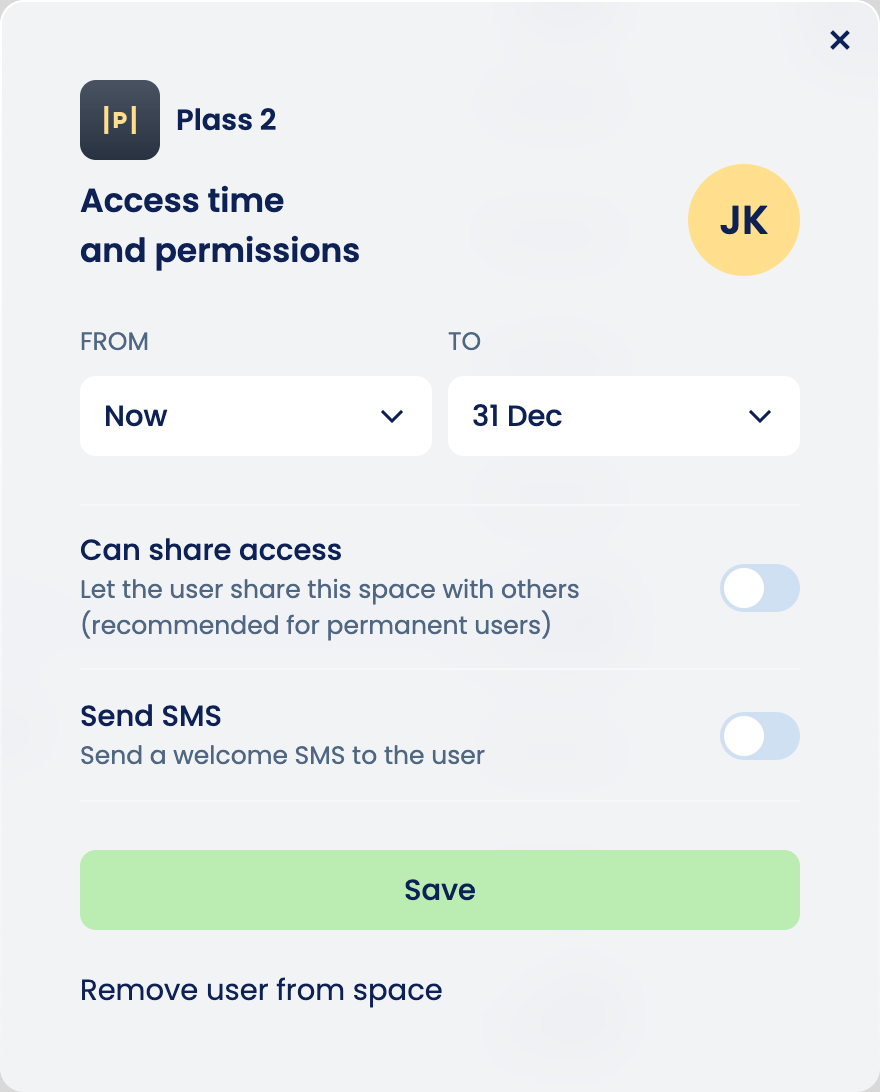
- In the “From” field, choose when the user’s access should start.
- In the “To” field, choose when access should end.
- “Can share access”: Choose whether the user can share access with others.
- “Send SMS”: Choose whether the user should get a text message with information about their access and how to open the garage. This is recommended if you have changed their access. If “Send SMS” is on, the text message is sent when you click the “Save” button.
- Click “Save”.
Did you find what you were looking for?
Didn’t find what you were looking for?Contact customer support